Using the Advisor
The Advisor is an optional AI-assisted guided workflow in the side pane. It answers questions about the open project and proposes steps you choose to run.
The Advisor is an optional AI-assisted guided workflow. It answers questions about the open project, recommends methods and proposes steps for you to run. The statistical analyses run on Vesta’s own methods. An account set to No AI has no Advisor tab.
Where it is
Section titled “Where it is”The Advisor is the first tab of the side pane, beside Data. A project opens on the Advisor tab.
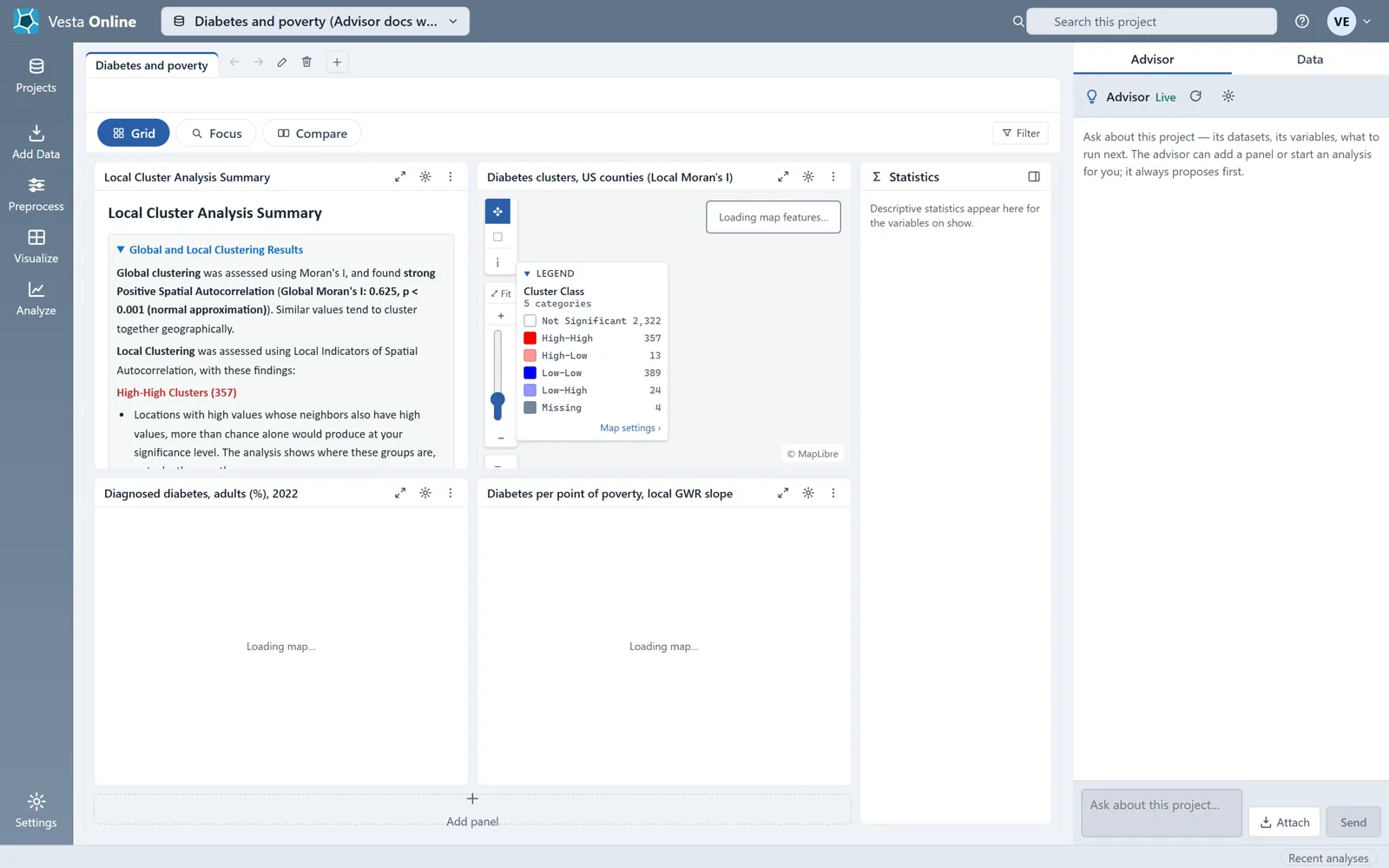
It needs an open project you can edit. You also need to be signed in.
On a project you can only read, the tab shows this message instead of the chat:
“Make a copy of this project to ask the Advisor about it — this one is open for reading only.”
The steps
Section titled “The steps”- Open the AdvisorChoose the Advisor tab, the first tab beside Data, in a project you can edit.
- See what the Advisor can seeOpen the gear in the panel header to reach the Privacy and sharing settings.
- Ask a questionType your question in the box that reads Ask about this project… and choose Send.
- Run a proposed stepChoose Run on a card to start its step. Nothing runs until you choose it.
- Save the conversationBelow the conversation, choose a File format, then choose Export conversation.
Asking good questions
Section titled “Asking good questions”Name the place and time, say what you want to learn, and ask why.
- Name the place and time. "Diabetes rates for US counties, 2022" is more useful than "health data".
- Say what you want to learn. Where rates are high, whether they are changing, or what they relate to.
- Ask why. Follow up with "why this method?" or "what are the assumptions?"
A question to try:
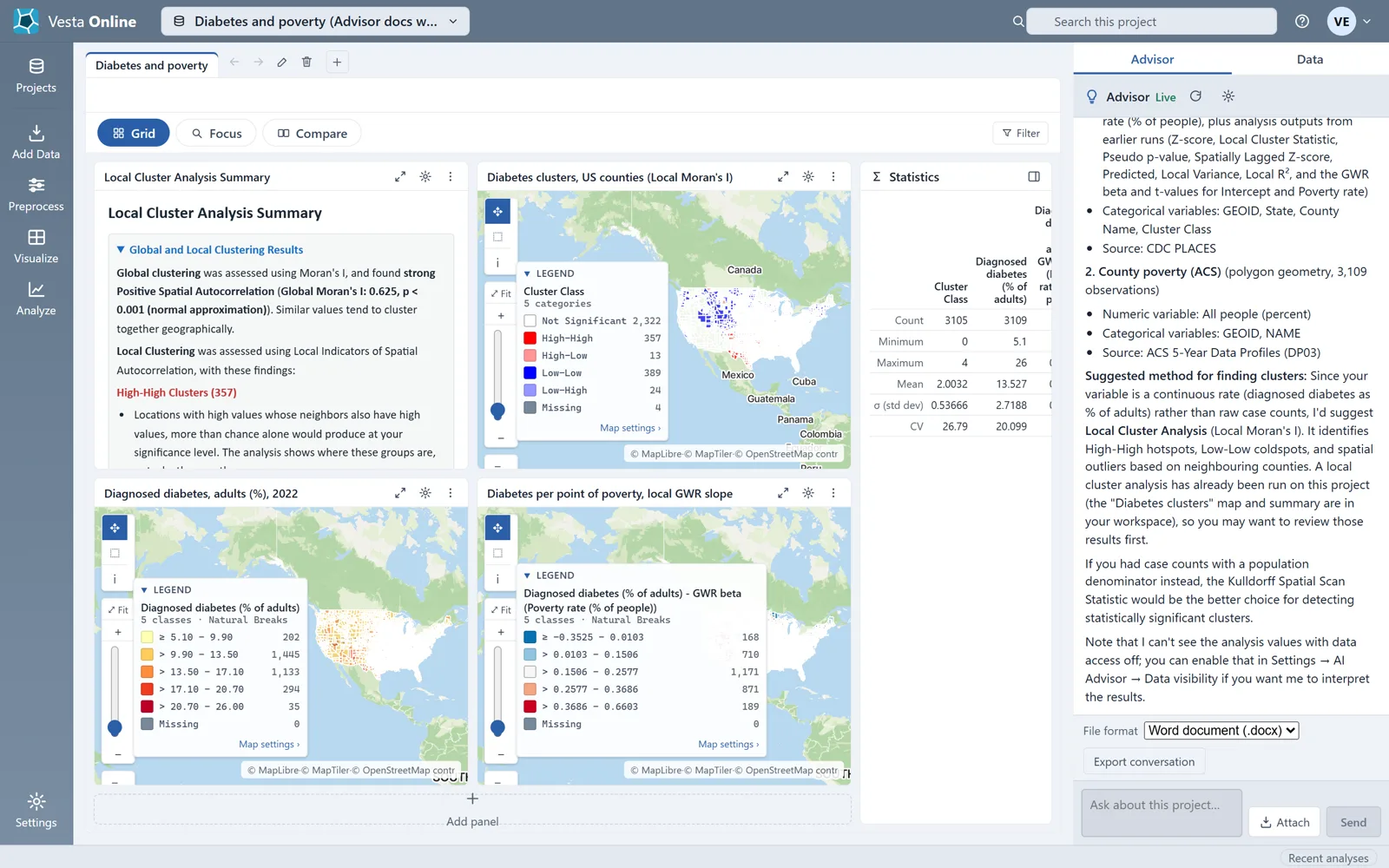
The reply lists the project’s datasets and variables and recommends a method, with the reasons.
Proposed steps
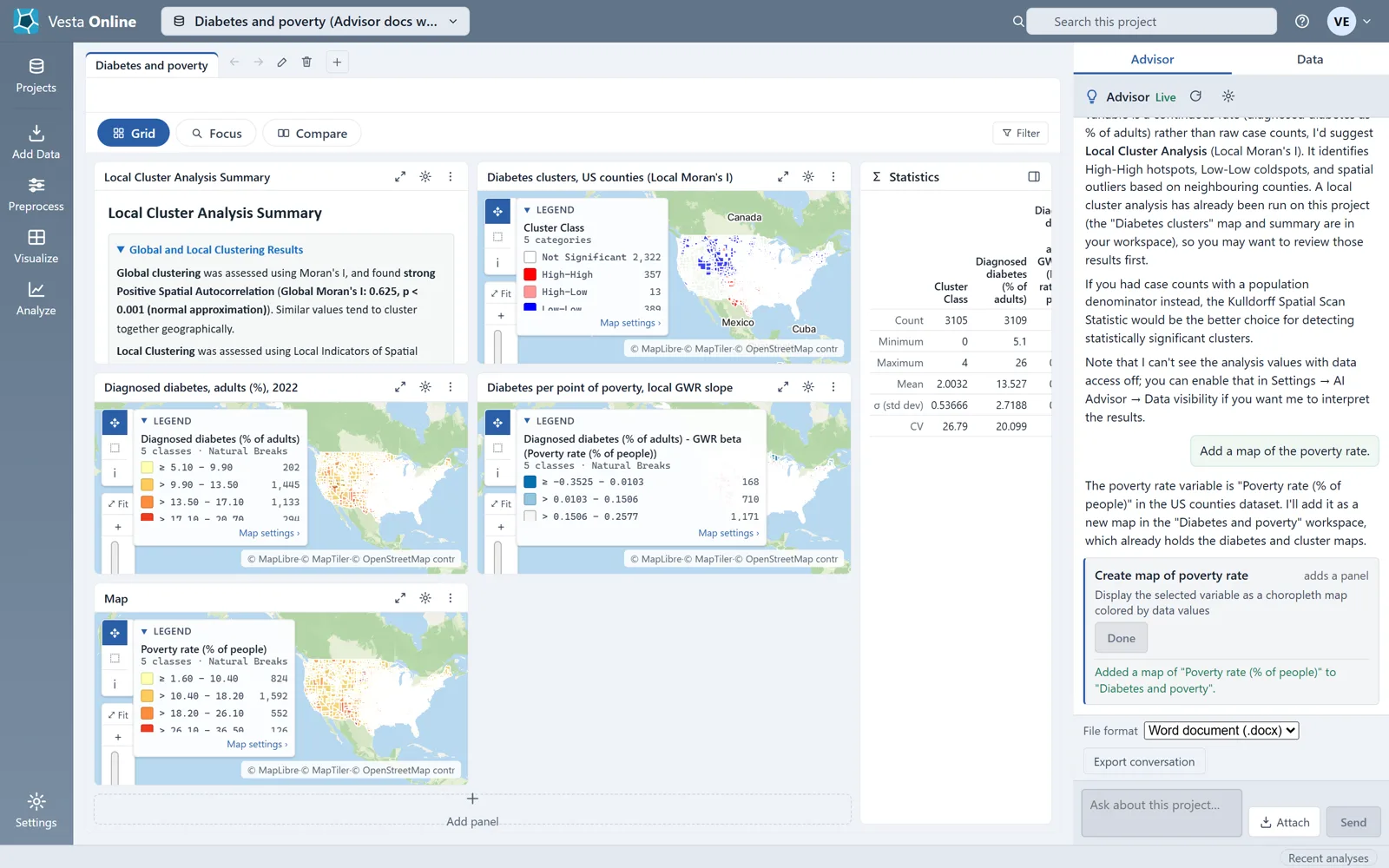
Section titled “Proposed steps”The Advisor shows each proposed step as a card. A card’s tag says what kind of step it is: adds a panel, runs an analysis or opens a wizard.
Choose Run on a card and the card runs the step. The button then reads Done, and the card states the outcome.
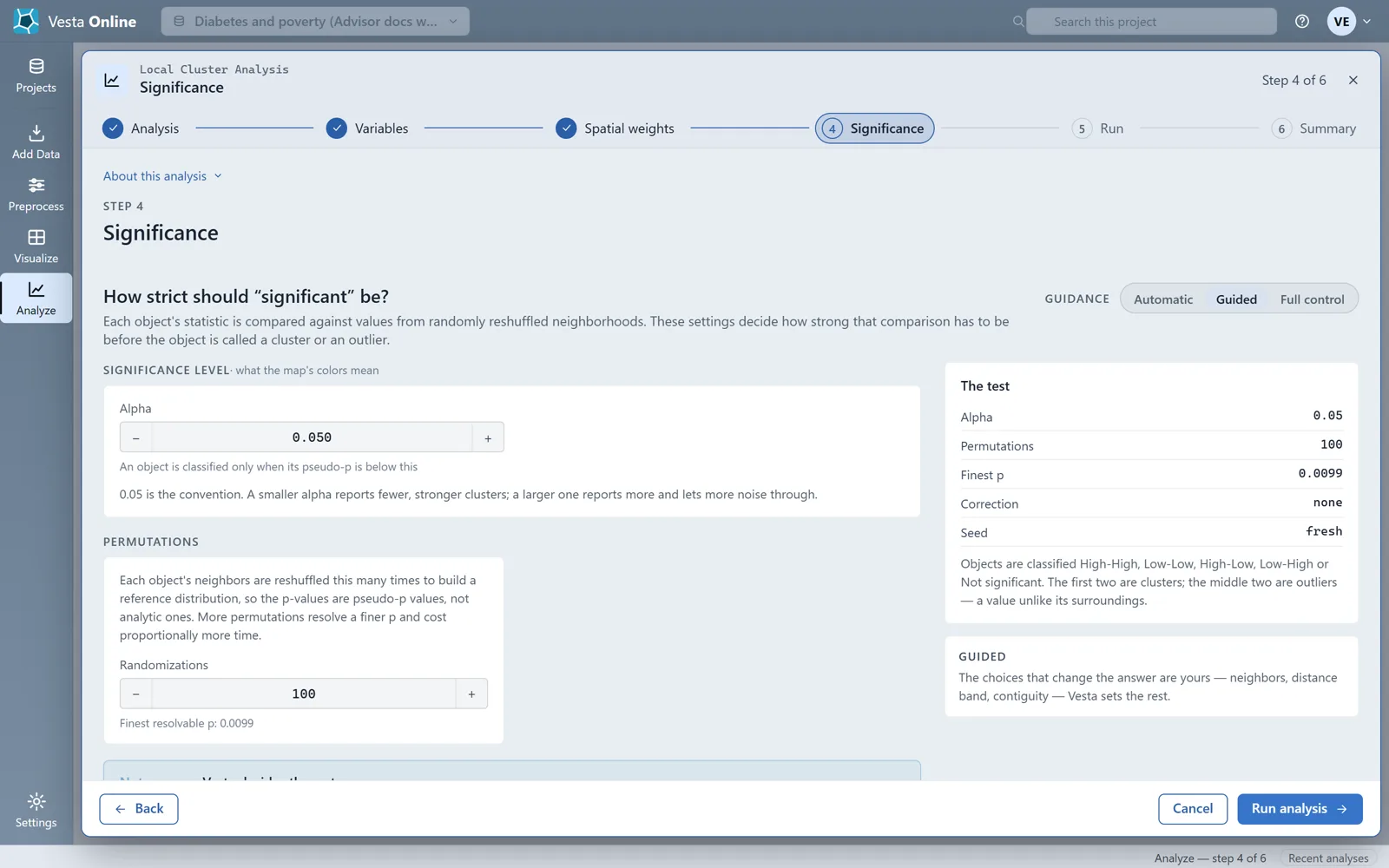
Some cards open a wizard instead. The button reads Open in Analyze. The wizard opens with its settings filled in. Nothing runs until you run it there.
Attach uploads a file for the Advisor to import.
What the Advisor can see
Section titled “What the Advisor can see”By default, the Advisor sees your question, the conversation so far and the project’s structure: dataset names, variable names and observation counts.
Data visibility is off by default. To turn it on, check Allow the AI assistant to see my project’s data values on Privacy and sharing and choose OK.
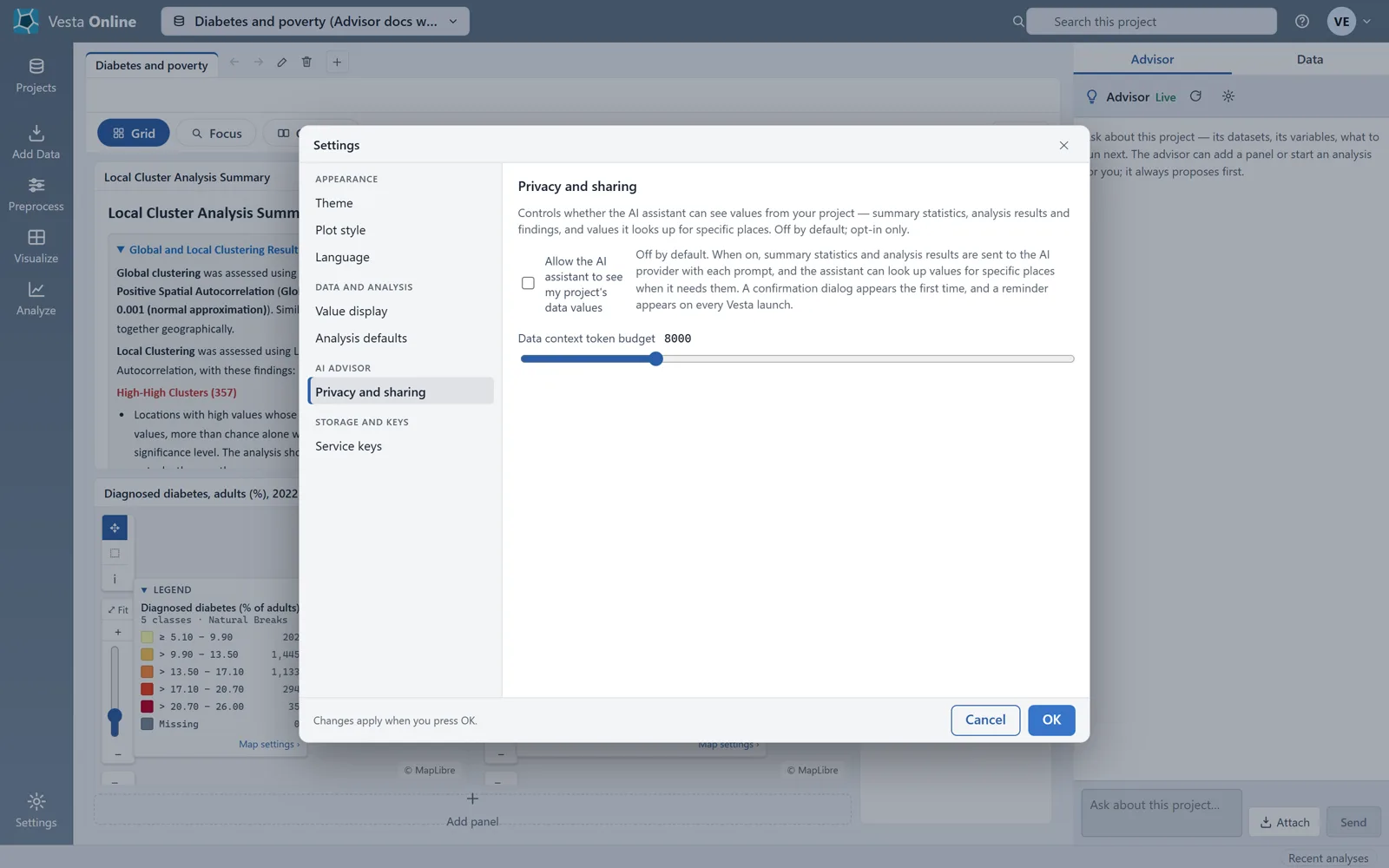
When it is on, summary statistics and analysis results are sent to the AI provider with each question, and the Advisor can look up values for specific places when it needs them.
Not shared: geometry coordinates, file paths, your project file, your name or email.
The Advisor uses a guardrail that blocks individualized medical diagnosis or treatment advice.
Models and limits
Section titled “Models and limits”The Advisor answers every customer account with Claude Haiku 5.5 on Amazon Bedrock.
Each account has a daily usage allowance and a limit on how many questions it can start each minute. When you reach a limit, the panel shows a notice that says Too many questions at once or This account’s advisor budget is used up.
Save the conversation
Section titled “Save the conversation”Once the conversation has a message, a File format bar appears below it. The list offers Word document (.docx), PDF (.pdf) and Markdown (.md). Choose Export conversation. The export downloads in your browser.
Where next
Section titled “Where next”- Compare methods: Choosing a method.
- See a method run end to end: Local cluster analysis.
- Share a project: Sharing projects.
- Bring in data: Data Library.