Sharing projects
Share a Vesta Online project with a colleague by email, choose whether they can only view it or also save a copy, and remove access when you are done.
Sharing gives other people read-only access to a project you own, one address at a time. You identify them by email address. An address with a Vesta account gets access you can set to Can view or Can duplicate; an address without one gets a read-only link. Every step below was run on Vesta Online; the screenshots come from that run, with account email addresses covered.
Share a project
Section titled “Share a project”- Create a projectOnly the owner of a project can share it. To try this with a new project, open the Projects page, choose New Project, type a name in the Project name box and choose Create. The new project appears in the list, selected.
- Open ShareOn the project's row, open the More actions menu and choose Share…. The Share project dialog opens with an Invite by email field, an access level and a People with access list that shows you as the Owner. The owner row shows your name, or the word You when Vesta has no name for you; it never shows your email address.
- Enter an address and pick accessType one email address. The access level starts on Can duplicate; the other choice is Can view. When the address belongs to a Vesta account, a line under the field says so: valid Vesta account, will get access.
- Choose ShareChoose Share. The person appears under People with access with their own access picker, and a line below the list confirms what you shared and at which level (Can duplicate, unless you changed it).
- Change a person's accessUse the access picker on their row to switch between Can view and Can duplicate. The change is saved at once; close and reopen the dialog to see it kept. In the walk the row was switched from Can duplicate to Can view.
- Remove accessChoose the x on their row (its tooltip is Remove access). The row disappears. Choose Done to close the dialog.
What you should see
Section titled “What you should see”The project list
Section titled “The project list”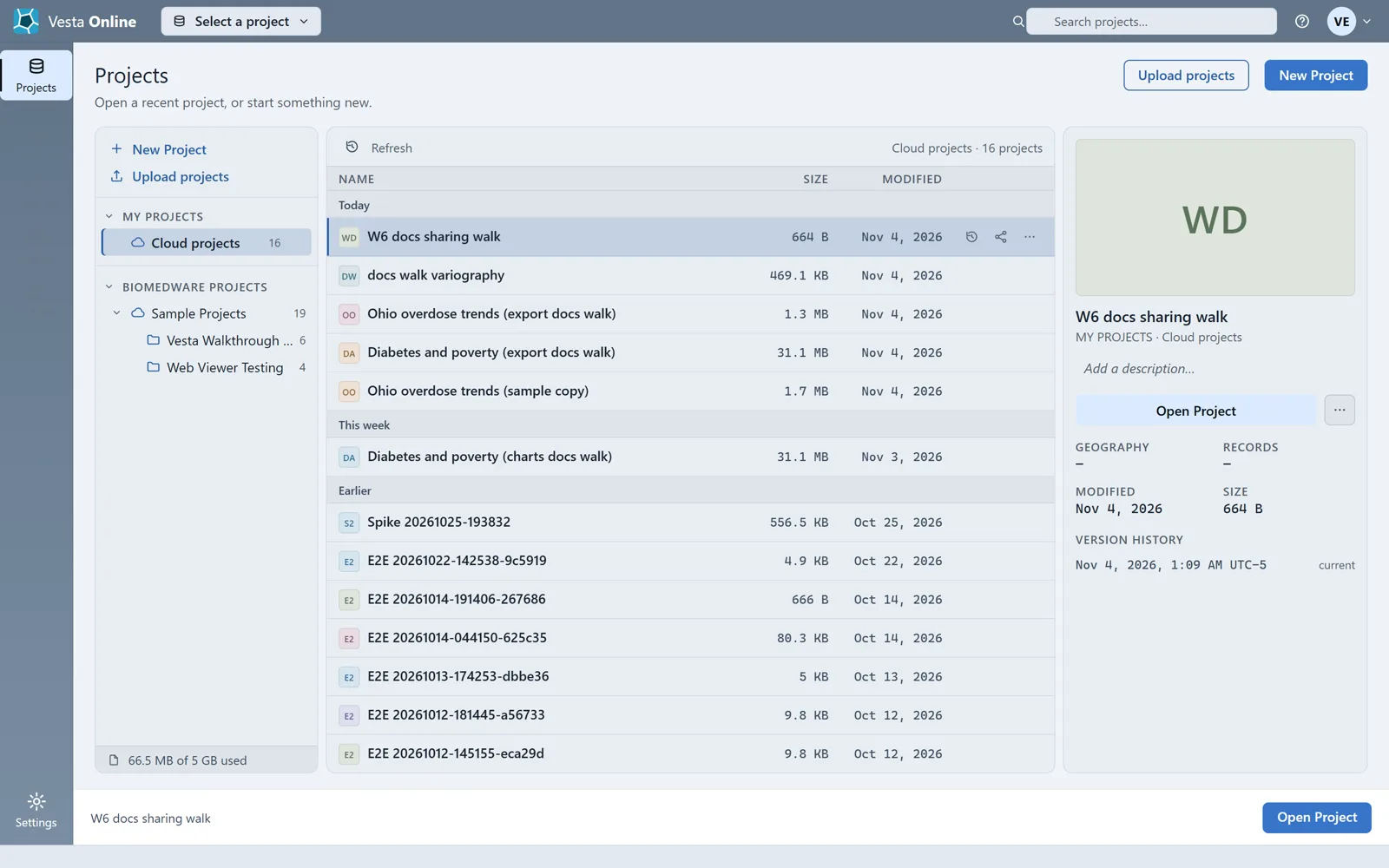
The row menu
Section titled “The row menu”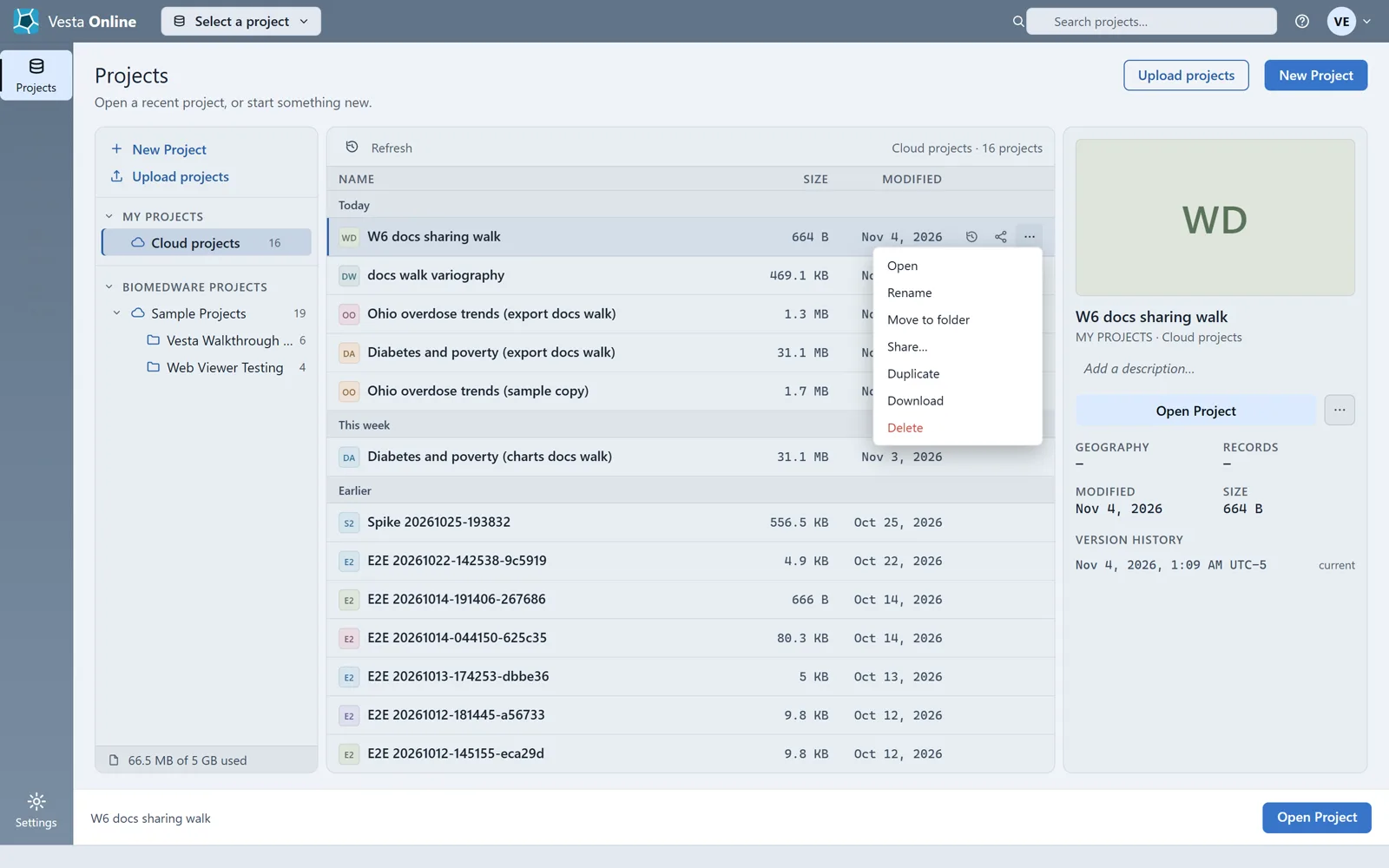
The Share dialog
Section titled “The Share dialog”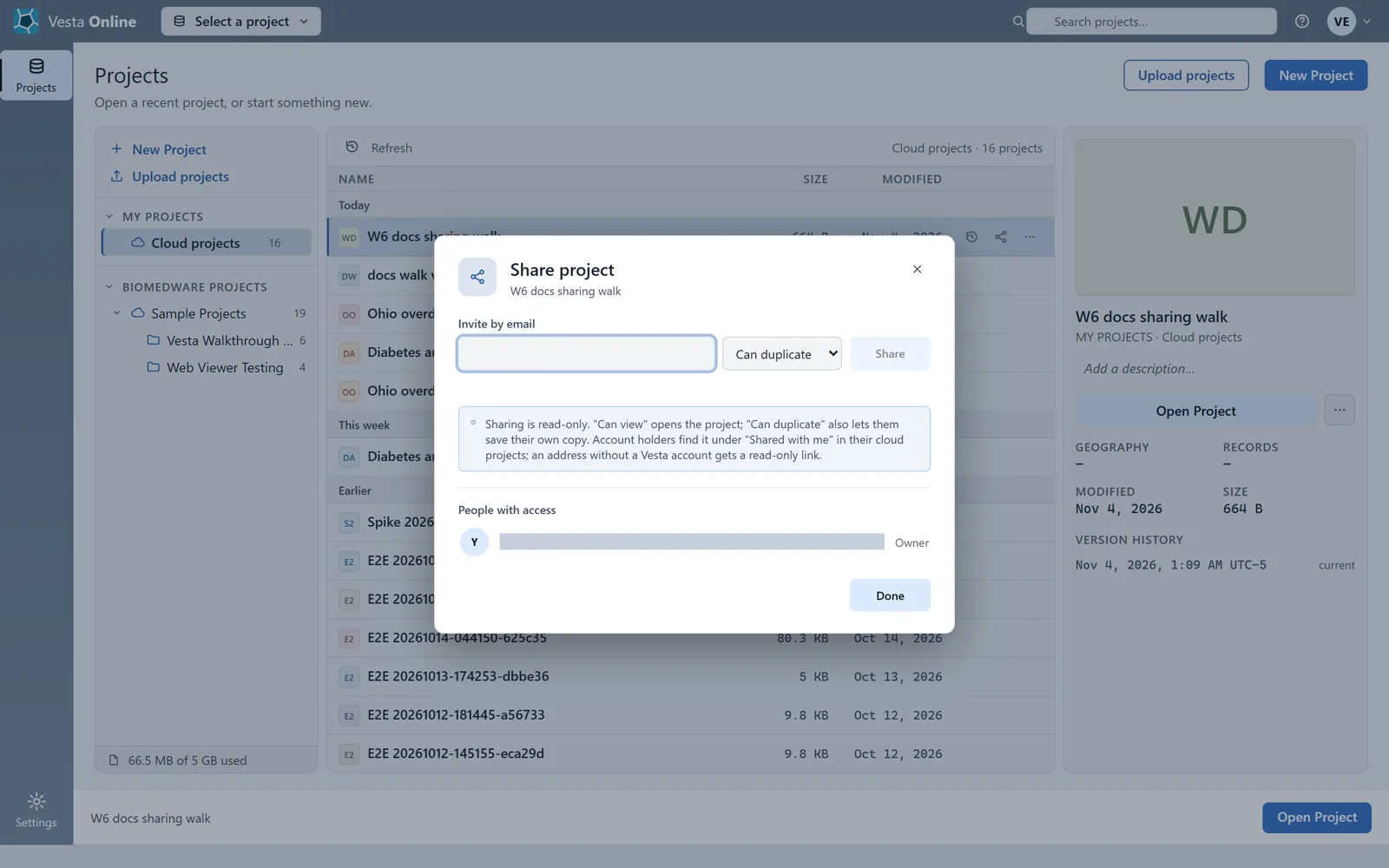
An address with no account
Section titled “An address with no account”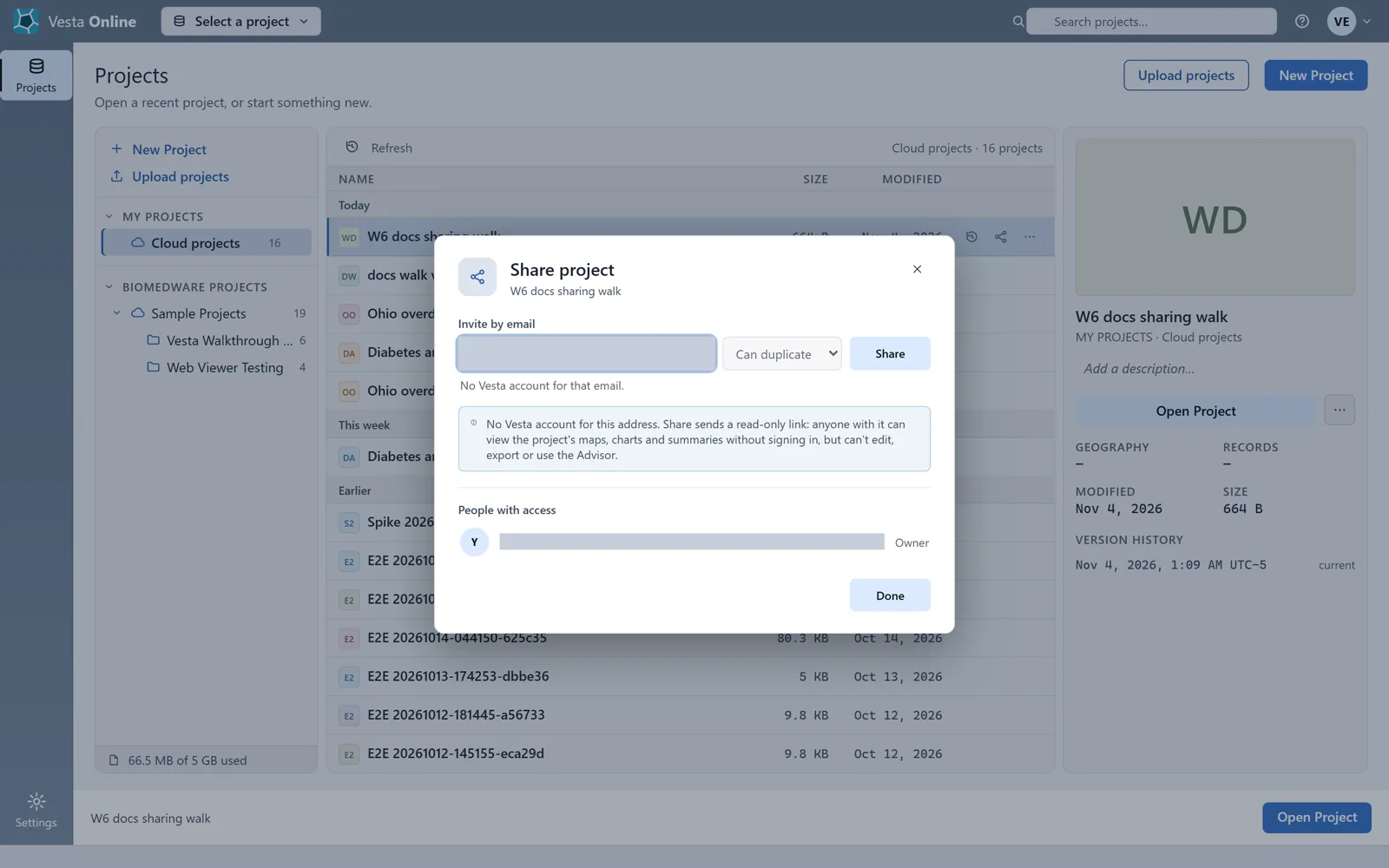
An address that has an account
Section titled “An address that has an account”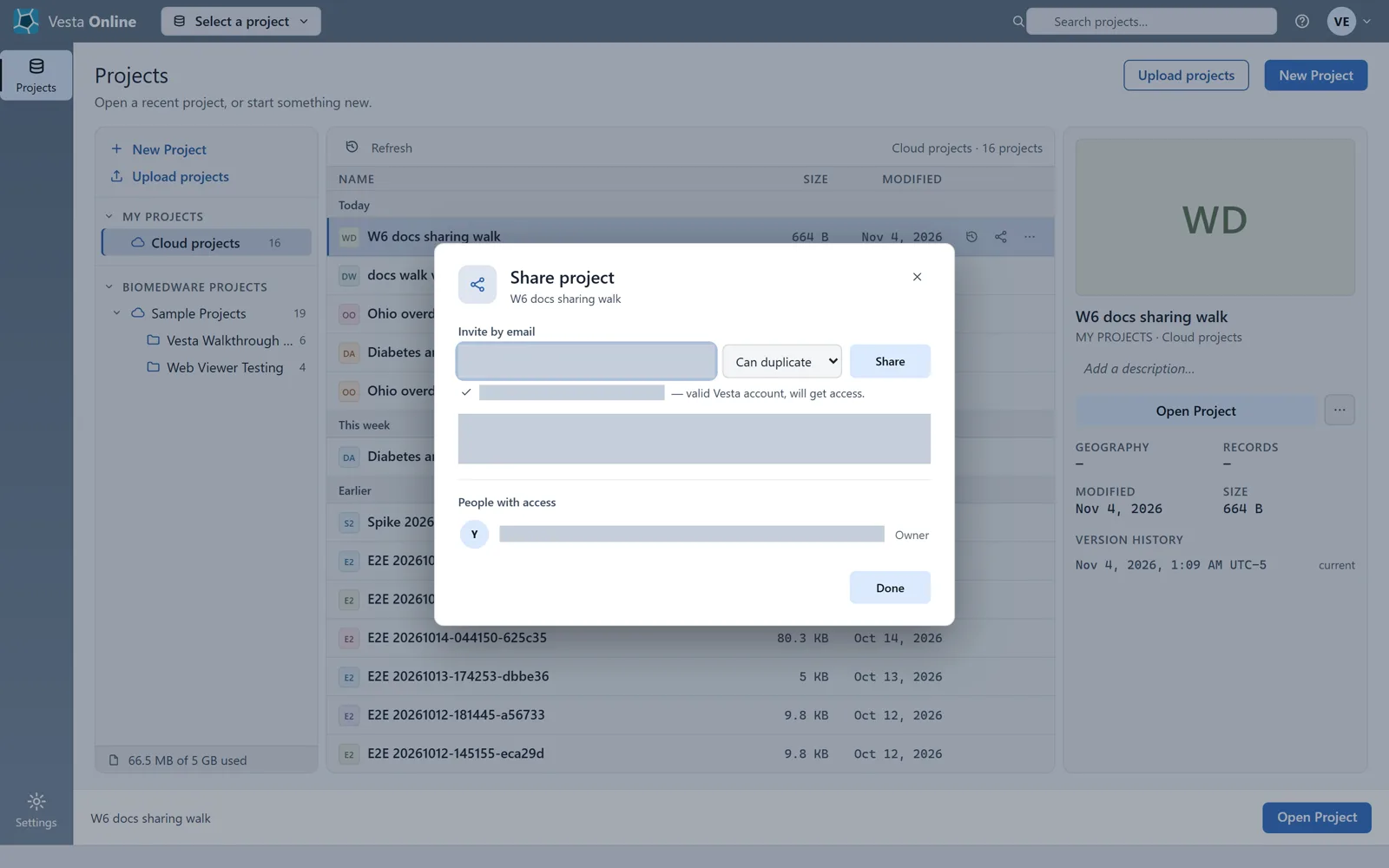
After sharing
Section titled “After sharing”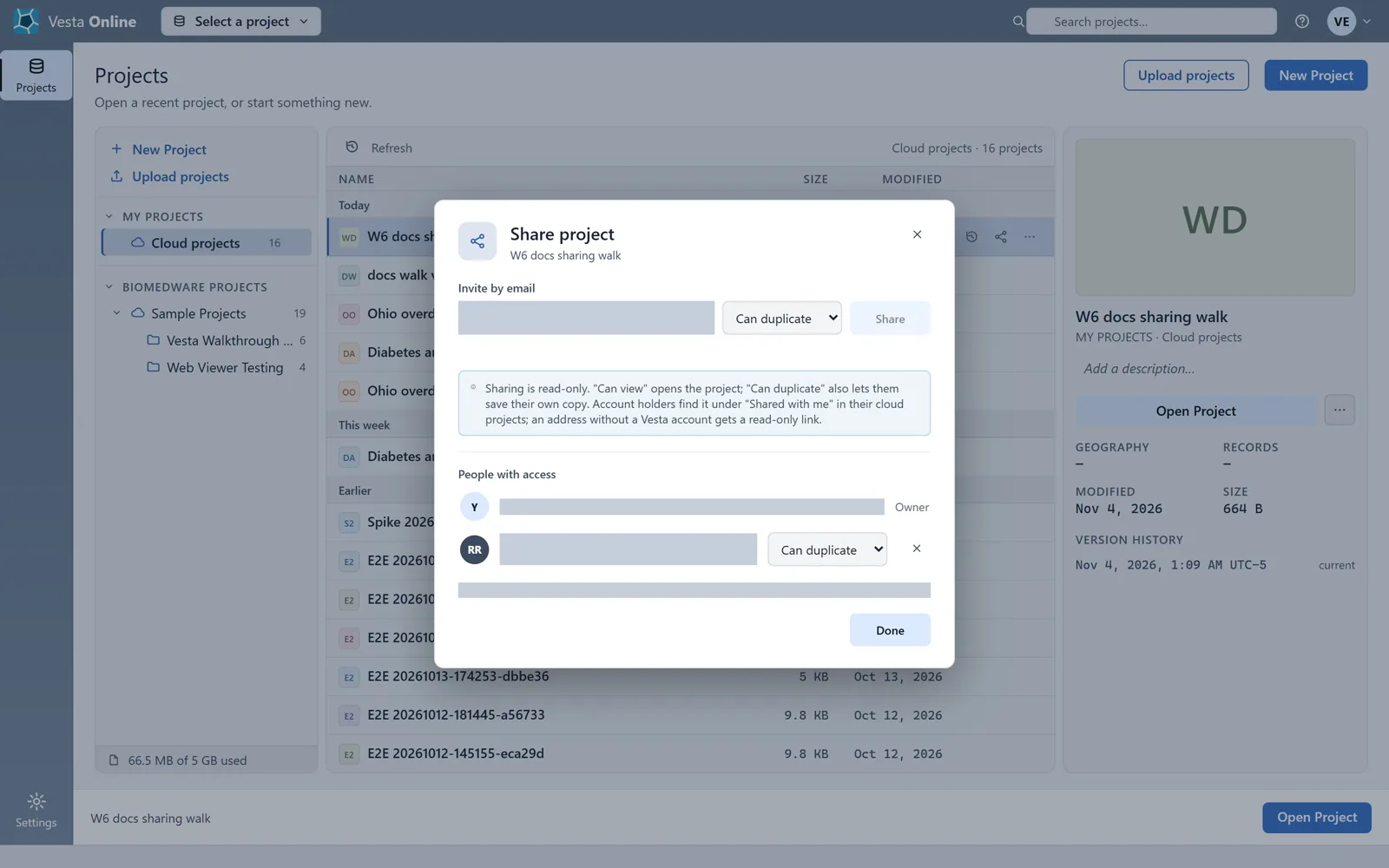
Changing the level
Section titled “Changing the level”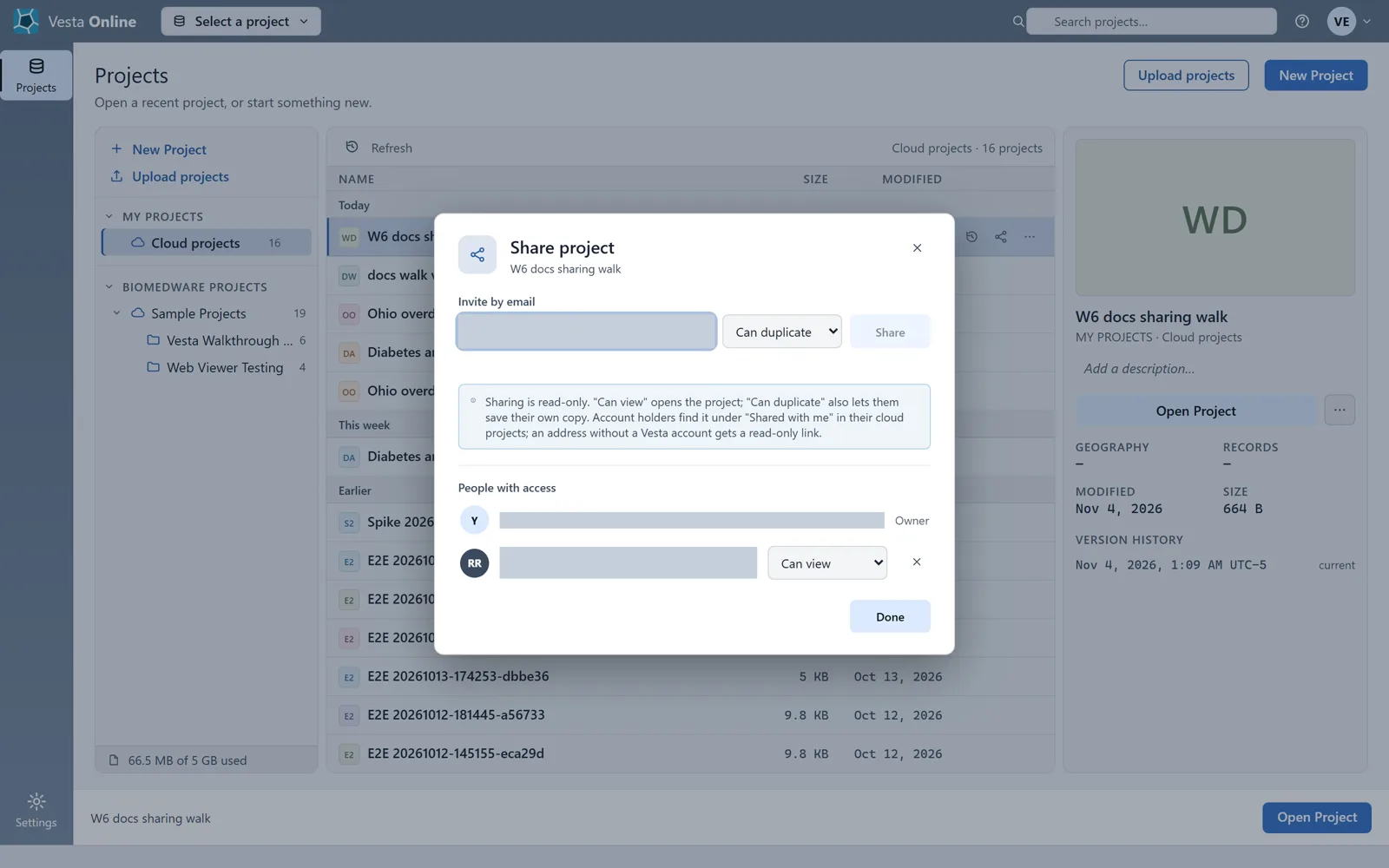
After removing access
Section titled “After removing access”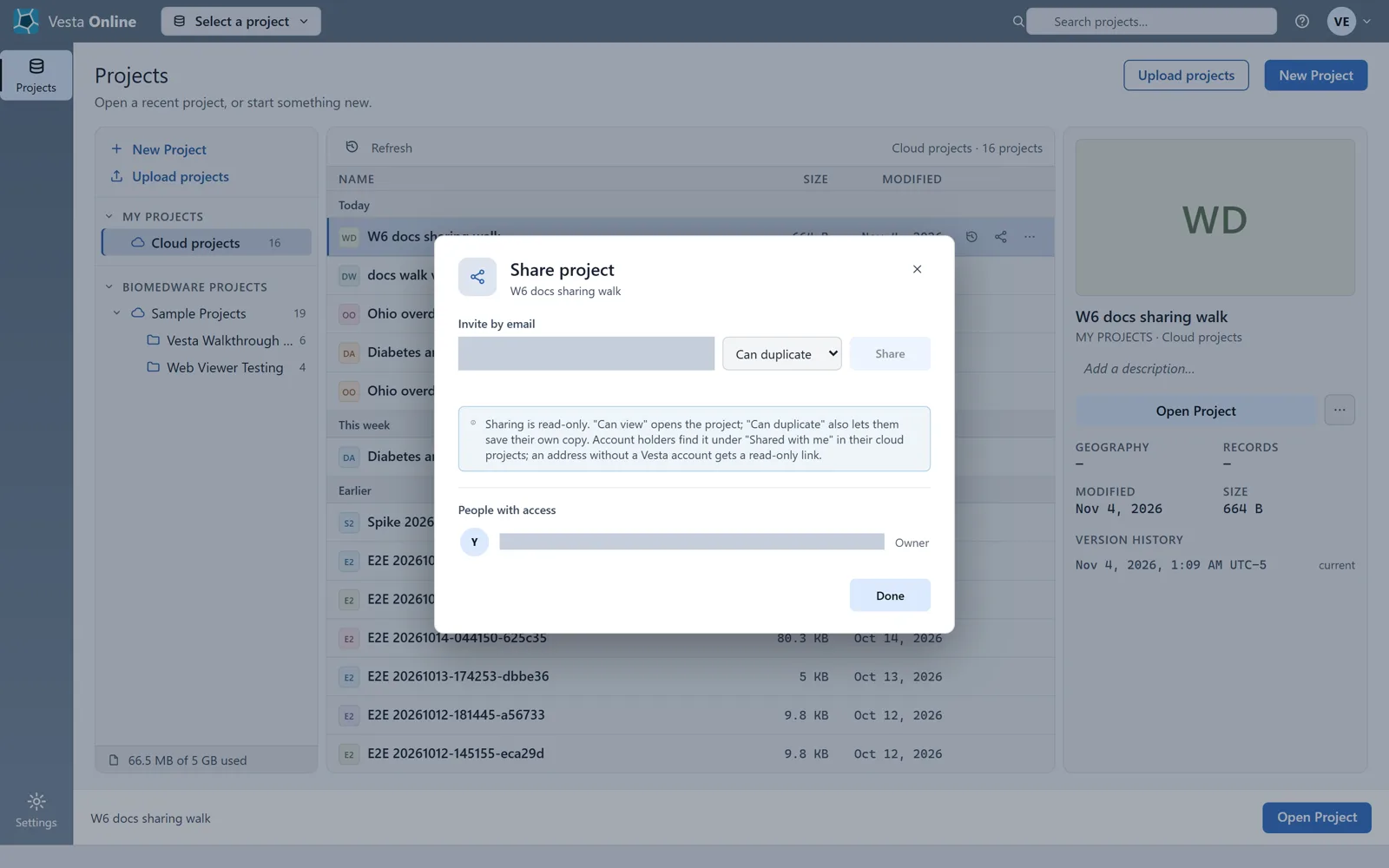
What each access level allows
Section titled “What each access level allows”For an address with no Vesta account, the dialog reads “No Vesta account for that email.” and locks the access level. Share then sends a read-only link instead of a grant: anyone with the link can view the project’s maps, charts and summaries without signing in, but cannot edit, export or use the Advisor. The dialog also gives you a Copy link button, and the link’s row has a button to revoke it. This walk did not choose Share for such an address, so it did not show the link being sent or opened; those details come from the dialog’s own text.
| Access | What the person can do |
|---|---|
| Can view | Open the project. Account holders find it under Shared with me in their cloud projects. |
| Can duplicate | Everything Can view allows, and save their own copy of the project. |
| Owner (you) | Share the project, change a person's level and remove access. |
Sharing is read-only at both levels. The dialog’s own note says so, and nobody you share with can change your project.
Limits
Section titled “Limits”- You share with one address at a time. Sharing again with someone who already has access is refused with “Already shared with that user.”; change their level from their row instead.
- An address with no Vesta account is not an error: it gets a read-only link, always at view level. Only an older client that does not ask for a link gets the answer “User not found.” for such an address.
- An address that is not shaped like an email gets “Enter a valid email address.” under the field, and Share stays off.
- This walk did not show Vesta Online sending the person a message, so tell them the project is there.
- A copy someone saves is their own project: it counts against their storage, not yours. Removing their access later removes only the share, so a copy they already made stays with them.
- This page shows the owner’s side only. It does not show what the person you shared with sees on their Projects page.
Storage
Section titled “Storage”The foot of the Projects page’s left panel shows your storage, for example “… of 5 GB used”. Five gigabytes is the default allowance, and it can differ by account. A project shared with you counts against its owner, not you.
Where next
Section titled “Where next”- Start a project: Quickstart.
- Bring in data to share: Importing data.